
Install · Windows
Install on Windows
Already have the x64 .zip? Start at step 1 below. Otherwise use the home page button or open the GitHub steps under Need the package?
Need the Windows .zip from GitHub?▾
Emulator releases (dated tag) or CI → Continuous Build (Windows…) → Assets → x64 .zip (msvc or clangtron in the name). Tagged builds are usually calmer than nightlies for a first install — compare on All builds.
Extract to a short folder (e.g.
C:\Tools\Citron). Avoid cloud-synced paths (OneDrive) when you can — fewer path / lock issues.Add an empty folder named
usernext to the.exefor a clean portable profile. Skip only if you intentionally reuse an old profile — why this matters.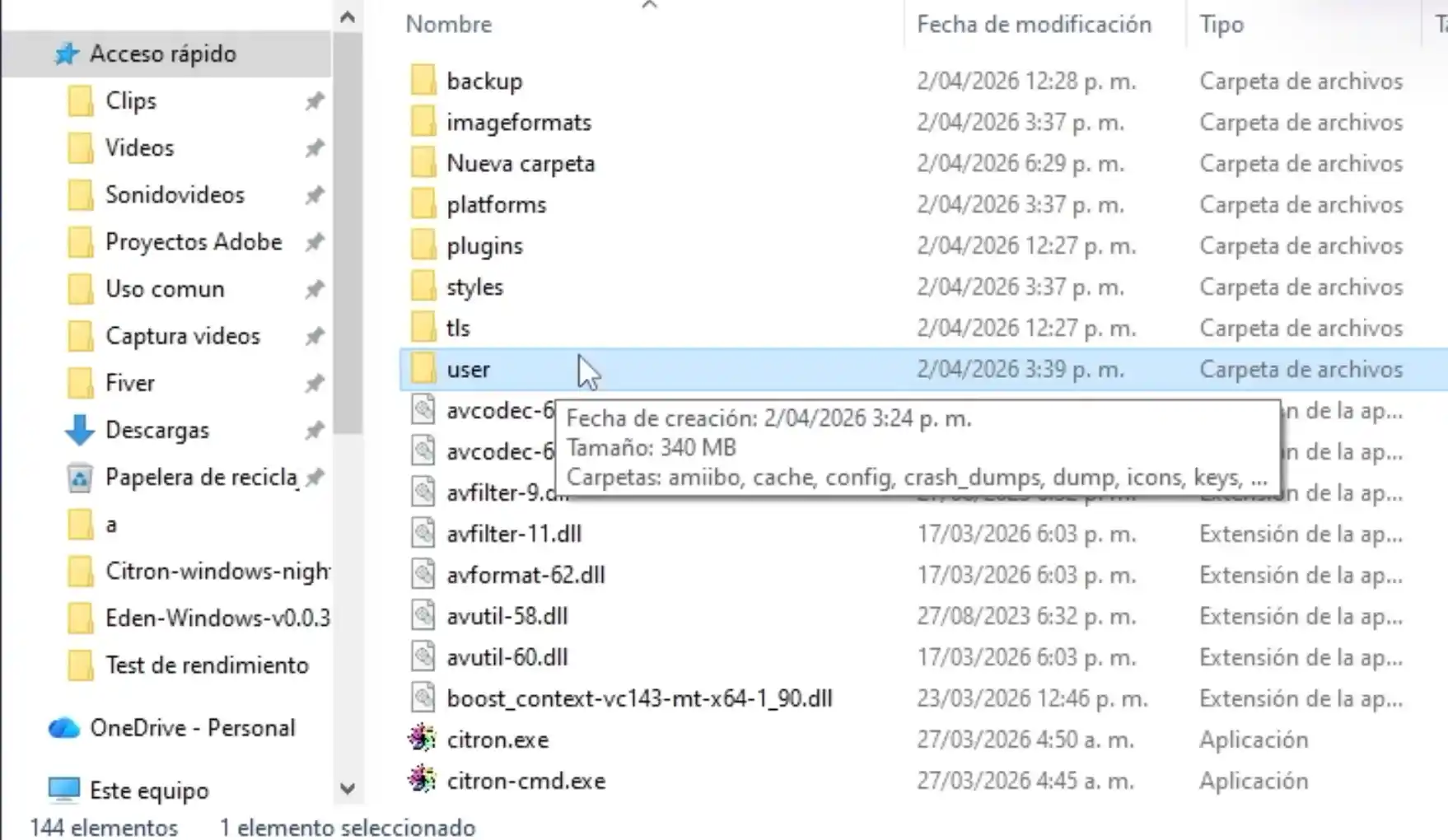
Put userin the same folder as the executable.Run the executable (often Citron.exe). SmartScreen: More info → Run anyway only for files from
github.com/citron-neo.Missing Visual C++ runtime? Install the latest x64 redistributable from Microsoft.